Containerization Fundamentals
Date: 2026-02-12
Intro
A Container - A linux process(one or many) with a set of kernel features applied to it.
Another definition - A regular linux process with restricted view of;
- the filesystem
- other processes
- networking
- system resources
The restriction is enforced by;
- Namespaces - What the process can see
- Cgroups - Managing/limiting system resources
- Filesystem Isolation - What files the process can access
Filesystem Isolation using chroot (Change Root)
chroot is a shell command that changes the apparent root directory of the current running process and its children. In simple terms, its changing a particular directory to be the new root directory. Once inside , you can’t access any directory above it.
This is how the command is used;
sudo chroot ~/test /bin/bash~/testis the directory we want to make the new root for the process we are executing in the command which is/bin/bash- The child processes such as commands ran through bash will reference
~/testas their root ()
~/test ❯ sudo chroot ~/test /bin/bash
bash-5.3# pwd
/
bash-5.3# echo "this is an isolated filesystem"
this is an isolated filesystem
bash-5.3#
Before using chroot, the following are the requirements;
- Root privileges - Sudo command
- Complete environment - The new root directory must contain all necessary files and essential binaries
Namespaces
This is a feature of the linux kernel that enables the separation and isolation of kernel resources such that one set of processes sees one set of resources, while another set of processes sees a different set of resources.
Types of Namespaces
| Namespace | Isolates | Explanation |
|---|---|---|
| PID | Process IDs | Allows a process to have its own set of PIDs (e.g., a container can have its own PID 1). |
| NET | Network interfaces | Provides isolated network stacks, including routing tables, IP addresses, and firewall rules. |
| MNT | Mount points | Isolates the file system hierarchy, so a process sees only the mounts it is allowed to see. |
| UTS | Hostname | Allows a process to have its own hostname and NIS domain name (useful for identifying containers). |
| IPC | Shared memory | Prevents processes in different namespaces from accessing each other’s inter-process communication resources. |
| USER | User IDs | Maps a user inside the namespace to a different user on the host (e.g., root in a container is a non-root user on the host). |
Introduction to Docker
In my words, I can say that docker automates the development of a container and adds other features such images, portable packaging and a friendly interface for manipulating these containers.
It an open-source software platform that enables developers to build, test and deploy applications quickly using containers.
Docker brings a standardized portable package/image that includes everything needed to run an application including the application code and its runtime environment configs.
Docker also standardizes the process of running any service on any local development e.g. postgresql, redis. These services are then started as a docker container using one docker command.
Docker is a virtualization tool and here are the differences between it and a Virtual Machine (VM);
- Docker only virtualizes the OS application layer. This means the containers share the same host kernel and OS. A Virtual Machine on the other hand virtualizes the OS application layer and the kernel layer. This means multiple Virtual Machines have each of their own guest OS which can be different from the host OS.
- Docker images are small while VM images are large because they need to come packed with more libraries.
- Containers spin up faster while VMs takes minutes because they have to load up a whole OS.
- Docker has compatibility issues with different OS’s while VM’s are not affected. Docker desktop fixes these compatibilty issues on Docker because it is originally linux-based.
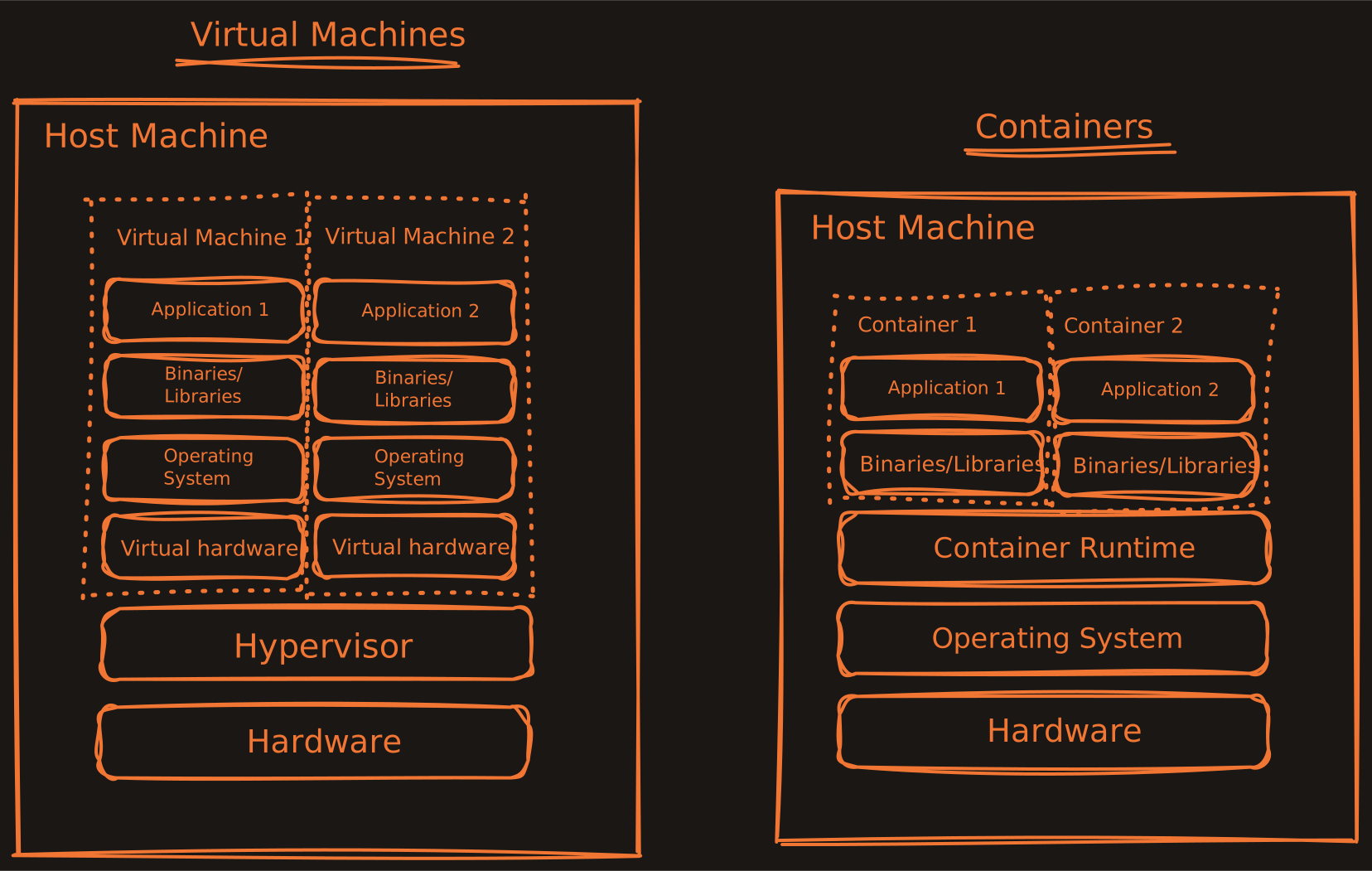
To install docker docker on my arch-based machine I used the following command;
sudo pacman -S docker- This installs the docker service in the machine which need to be started and enabled so it starts on boot.
Docker Registries
A Docker Registry is a storage and distribution system for Docker images e.g Docker Hub.
Docker Registries can either be public or private. Public ones can be accessed by anyone while big cloud providers offer private registries services. One needs to be authenticated to access this private registries.
A Docker Repository is a collection of related images with same name but different versions. The repository is found inside a Docker Registry.
Docker Commands
- docker images —> list all docker images
- docker ps —> list running containers
- docker pull {name}:{tag} —> pull or download an image from the registry if not available locally
- docker run {name}:{tag} —> creates a container from given image and starts it. If not found locally, the images will automatically be pulled from the registry.
--nametag can be used on the command to manually assign a custom name on the container but normally random names are generated if--nametag is not used - docker logs {containerID} —> view logs of the service running in a container which are present at the time of execution
- docker start {containerID} —> start one or more stopped containers
- docker stop {containerID} —> stops the running process of the container
- docker ps -a —> list all containers whether running or stopped
- docker build -t {name}:{version/tag} {directory where the dockerfile is} —> builds the docker image from Dockerfile.
- Instead of containerID, we can use the container names on the above commands.
Port Binding
This is the process of mapping a port on the host machine to a port within the docker container. This allows external traffic to access network services running inside the isolated container. Here is how it is configured;
docker run -p {host port:container port} -d nginx- -p flag specifies the format host port:container port.
- -d flag runs the container in detached (background) mode.
It is recommended to map the same port for the host machine and the container.
Dockerfile
This is a plain text document that contains a series of commands or instructions which the docker engine reads and executes to create a docker image.
Dockerfiles start from base image —> this is an existing image that your image will be based on.
Structure of Dockerfile
- FROM —> Builds the image from a specified image.
- RUN —> This will execute any command in a shell inside the container environment.
- COPY —> This will copy application files from the host into the container.
- WORKDIR —> This sets the working directory for all following commands.
- CMD —> This is the instruction that is to be executed when docker container starts.
NOTE: A Docker image consists of layers. Each instruction from the Dockerfile creates one layer. These layers are stacked and each one is a delta of the changes from the previous layer.